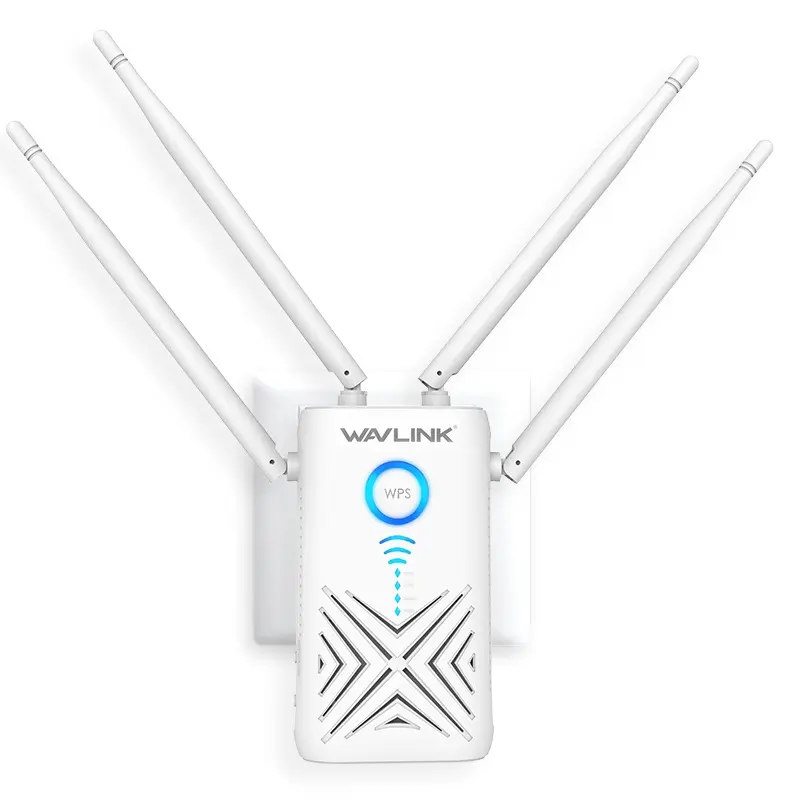
Map the WN579X3 wall-plug controls and two Gigabit ports
These are theoretical link capabilities from the manufacturer specification, not guaranteed internet speeds. Distance, the main router, client hardware, interference and the selected operating mode all affect real performance.
Place the indoor AC1200 unit beside the router for setup
Choose Repeater on the mode switch before using a wireless uplink. Keep the unit close to the router and leave the LAN and WAN/LAN cables disconnected during initial wireless setup unless the official quick guide instructs otherwise.
- Confirm the main router works before configuring the extender.
- Keep the router’s WiFi name and current wireless password ready.
- Disable mobile data, VPN and proxy routing on the setup phone temporarily.
- Wait until the extender has completed startup before opening a local address.
Join the WN579X3 factory WiFi and open its local dashboard
Join the factory WiFi shown on the WL-WN579X3 label. A phone may say that the network has no internet; choose to remain connected because the extender has not yet joined the router. Open a new browser tab and type the supported local address directly in the address bar, not into Google.
If waplogin.link is documented for your hardware revision but does not open, check the connected network details for the Router or Default Gateway value. Try that local address, a private browser tab, and a second device before resetting.
Choose Repeater, AP or Router with the physical mode switch
- Select Repeater or Range Extender in the wizard if it was not chosen by a physical switch.
- Scan for nearby networks and select the exact 2.4 GHz or 5 GHz router SSID.
- Enter the router WiFi password—not the local administrator password.
- Choose clear extended-network names so testing devices can distinguish them.
- Create a unique administrator password if the firmware requests one.
- Save the settings and allow the WL-WN579X3 to restart completely.
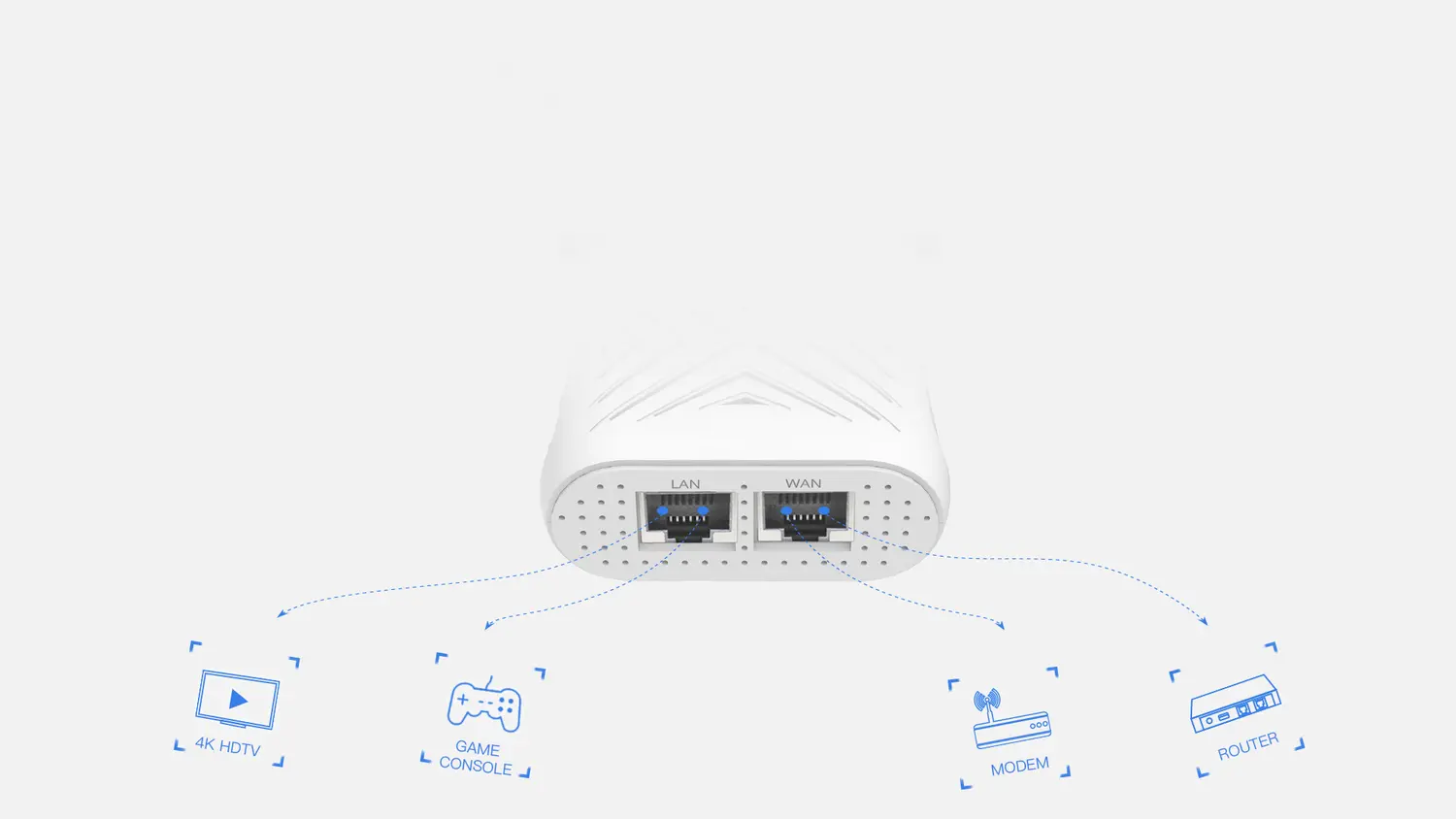
Use WAN/LAN and LAN ports according to the selected mode
Both Ethernet connections support Gigabit speeds, making the WN579X3 more suitable for a wired television, console or desktop than a 100 Mbps extender. In AP mode, use the designated uplink port and let the main router handle addressing unless your network plan requires something different.
Keep administrator credentials separate from the WiFi password. The first protects the local control panel; the second joins the extender to the router and connects client devices.
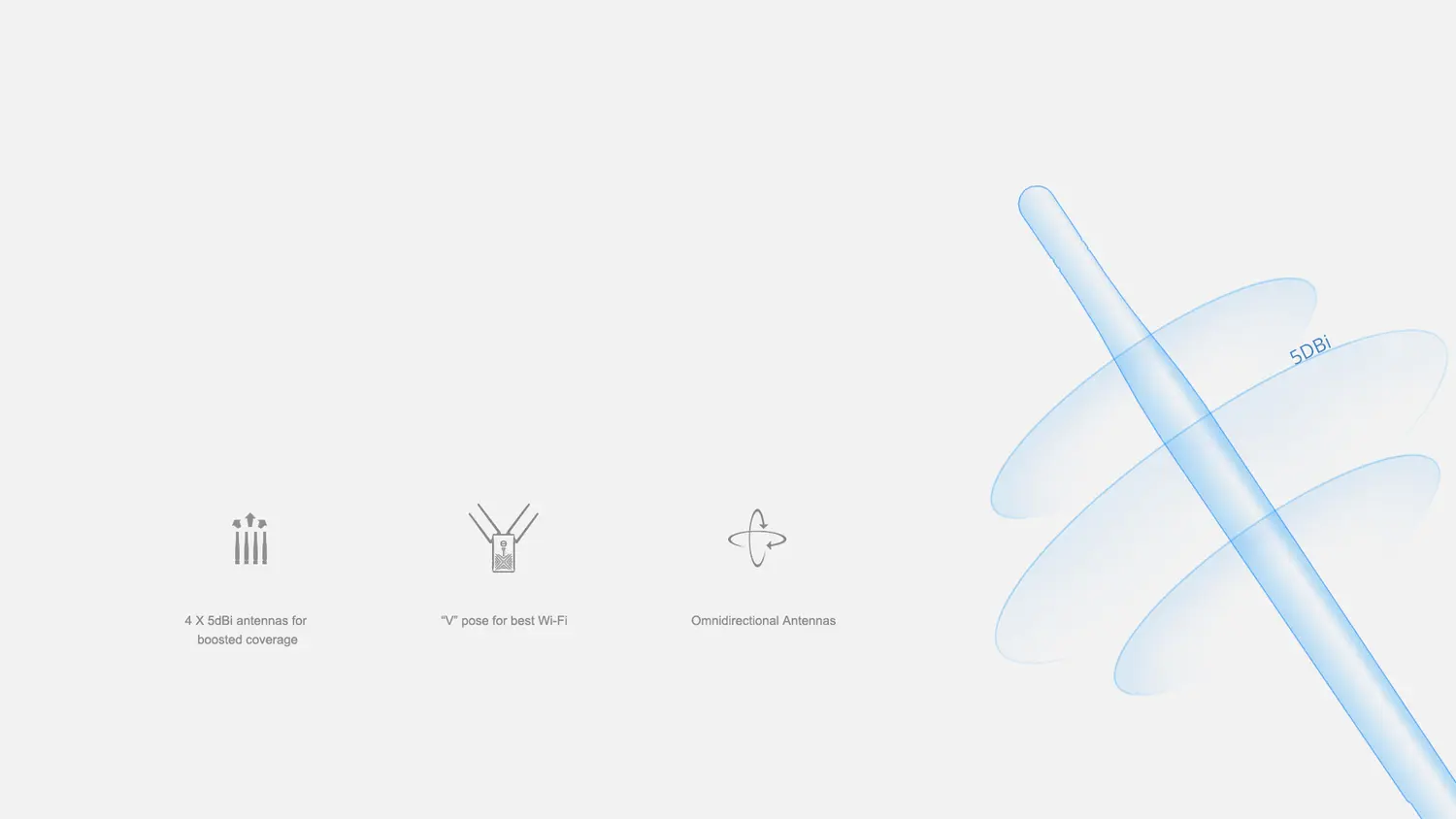
Position four antennas around the indoor wall-plug body
Four 5 dBi antennas and built-in amplifiers can improve reach, but they do not remove the need for a good router link. Use the intelligent signal indicator after configuration and avoid placing the extender behind a television or near large metal objects.
Reconnect a phone to the extended network and test multiple websites, a video call and the rooms that originally had weak coverage. If the connection works beside the extender but drops repeatedly, move the extender closer to the main router.
Compare the three indoor operating roles
Repeat an indoor router without an Ethernet uplink
Select Repeater, scan for the router SSID, enter the router WiFi password, choose extended SSIDs and save. No router cable is normally needed during the wireless setup.
Create a wired access point through a Gigabit port
Select AP, connect the router LAN to the model’s documented uplink port, create WiFi names and security, then find the new address assigned by the upstream router.
Use Router mode only with a modem or upstream Ethernet service
Use these roles only when the model page and official manual list them. Router mode uses a WAN/uplink connection; mesh roles require compatible equipment and do not behave like a generic repeater.
Test both bands and the two wired connections
- Reconnect to the new extended SSID.
- Confirm the phone received a valid local IP address.
- Open two unrelated websites.
- Test both configured bands.
- Check the router-link or signal indicator.
- Test from the final outlet and target room.
- Confirm the local admin page or assigned IP still opens.
- Record the administrator password securely.
- Re-enable VPN, mobile data and privacy tools.
- Forget the temporary factory network if it remains saved.
Diagnose a wall-plug power, mode-switch or uplink fault
If wired clients work but the extended WiFi does not, review the selected operating mode and wireless security settings. If the local page cannot be found in AP mode, inspect the upstream router’s connected-client list for the address assigned to the WN579X3.
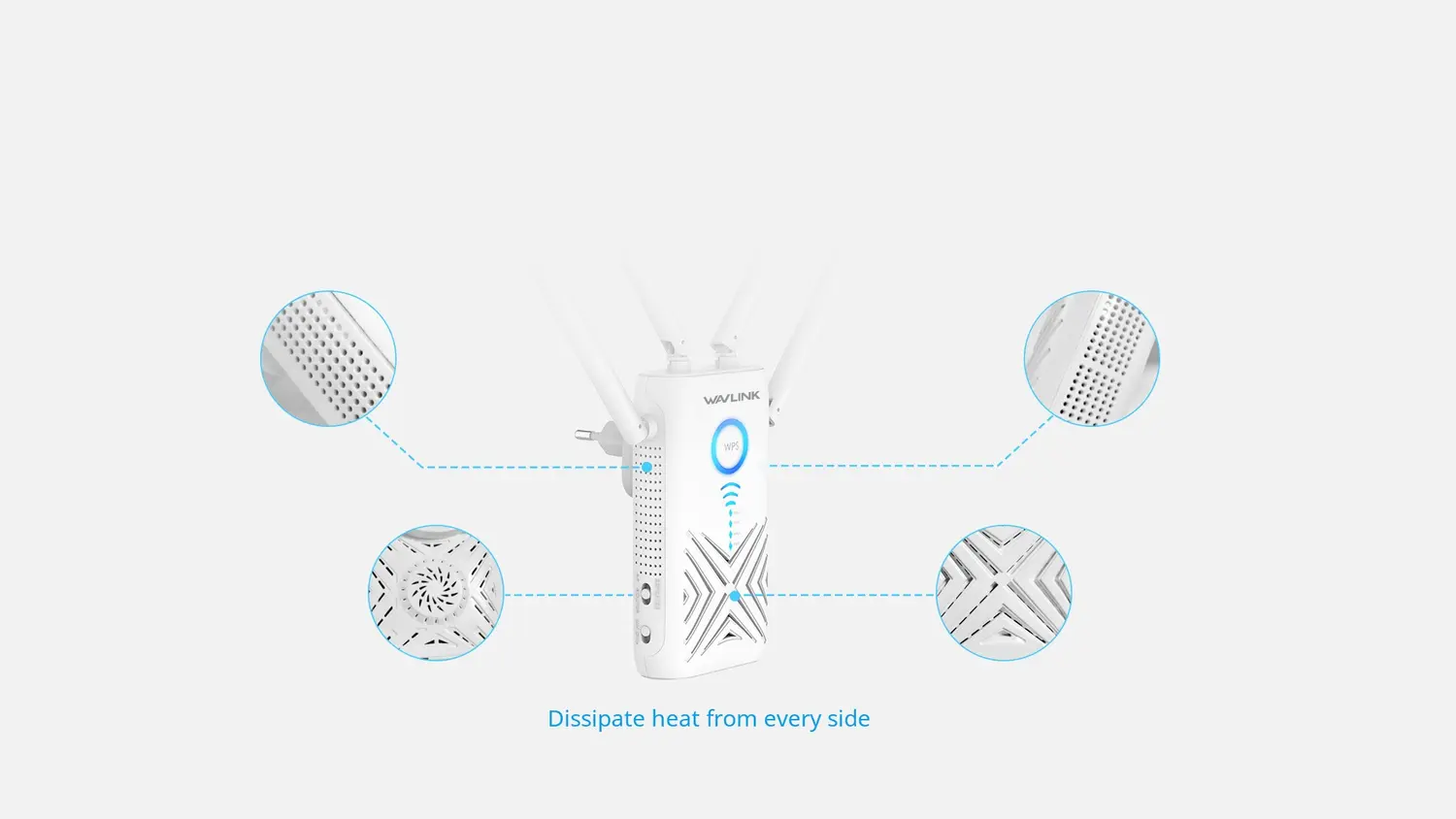
Read Power, WiFi, WAN, LAN and signal indicators
Inspect the wall-plug controls and port lights
Check the power and network indicators before mounting. Outdoor positioning and cable condition can affect the LEDs even when settings are correct.
- Status: allow startup to finish before diagnosing the colour or pattern.
- Ethernet: use the port according to the selected operating mode.
- Reset: press only for the duration stated in the exact model manual.
Update the exact WN579X3 indoor hardware revision
Restart first by removing power briefly; a restart retains settings. If the administrator password is lost or configuration cannot be repaired, follow the exact reset timing in the official manual. A factory reset erases the router connection, SSIDs and administrator password.
Download firmware only from the manufacturer page for the complete model and hardware revision. Do not interrupt power during an update or install a file because another extender looks similar.
View the official WL-WN579X3 product information →
WL-WN579X3 wall-plug setup questions
Can this model be configured without internet?
Yes. The local setup page can open while connected directly to the device, although the router must be online to test the completed internet connection.
Why does the local address stop opening after setup?
The upstream router may assign the extender a new local IP address. Check the router client list or the gateway information while connected to the extended network.
Should I reset it when setup fails once?
No. First verify the selected WiFi network, router password, operating mode and placement. Reset only after simpler checks fail because it removes saved settings.